A racing sim, a tactical shooter, and an MMO all want a fast, stable PC, but they're bottlenecked by completely different things. Below is a genre-by-genre breakdown of what actually slows each one down, and which real Wayne's GoldCore feature addresses it, not just "it makes your game faster" hand-waving - the real goal is to optimize each genre's actual bottleneck, not apply one generic pass to every PC regardless of what you play.
Wayne got his first taste of PC gaming in 1997 on FPS and racing titles, and the two genres this page opens with aren't a random pick.
This page is one part of our full PC optimization checklist for gaming. To properly optimize a PC for gaming, you need to work through every real lever once: optimize background processes, optimize GPU driver settings, optimize CPU and device affinity, optimize RAM and storage, optimize your network, and optimize your display settings, each in the order that actually moves the needle on a real PC, not six separate half-remembered tips picked at random. Whichever genre brought you to this page, the full PC optimization checklist is the fastest, most reliable way to optimize the rest of your PC too.
Every frame you see and every shot you fire travels through the same chain. A single slow stage is all it takes to feel "off", no matter how fast the others are - optimizing one stage while ignoring the rest barely moves the result.
Mouse/keyboard/wheel → USB → the OS input queue. A sleeping USB port waking up costs a real, measured 2–5ms right when you move.
Your game's logic and physics thread, fighting background processes and driver interrupts for the same cores and the same milliseconds.
Frames get built and scheduled. A stutter here is a frame-TIME problem, not a frame-RATE one: your average FPS can look fine while it happens.
Packets queue, and queuing is jitter. A flat, low, consistent ping matters more than a low average one ever will.
The finished frame hits your screen. Everything upstream either arrived on time, or it didn't. This stage can't fix a late frame.
"Frame time" is how long each individual frame took, not the average over a second. A game can average 200 FPS and still feel jerky if a handful of those frames spiked to 40ms while the rest sat at 5ms. That's what shows up as a stutter, a camera hitch, or a missed shot, and it's invisible on a plain FPS counter. GoldCore's Overlay HUD and Tweak Verification Lab both show frame TIME, not just an average, for exactly this reason.
Individually, most tweaks in the catalog are small. Turning off USB Selective Suspend saves 2–5ms. Timer resolution shaves a few milliseconds off input-to-action latency. A correctly-sized MTU removes fragmentation overhead most people never even test for. None of those alone will show up as a dramatic FPS number.
But they don't all act on the same stage of the pipeline above: they stack across it. An input tweak, a CPU scheduling tweak, a GPU tweak, and a network tweak applied together don't add up like 1+1+1+1, because each one removes a different source of delay on the same critical path, back to back. That's the actual case for applying a whole preset instead of hunting for one miracle setting, and why Conflict Detection matters just as much as the tweaks themselves, so none of that stacking quietly cancels itself out.
Windows-side tweaks close every gap they can, but the single biggest lever for a flatter, more consistent connection often isn't a Windows setting at all: it's whether your router is genuinely managing its own queue (real Smart Queue Management/CAKE) instead of just letting it fill up. GoldCore's own Router Tweaking tool runs a real bufferbloat test against your actual connection first, then hands you the right fix for your specific router instead of a generic YouTube search: BT, Sky, Virgin Media, TP-Link, Netgear, Asus (stock and Merlin), DrayTek, OpenWrt, and pfSense/OPNsense are each covered individually, with an honest note on whether your particular router can do a full fix or only a partial one. Can't get into your router at all? There's a PC-level fallback built in too.
Every fix above is verifiable, not a "trust us" claim. GoldCore's own Latency Monitor watches DPC (Deferred Procedure Call) latency live, with a real per-driver breakdown, so instead of a vague "feels a bit laggy" you get the exact driver responsible for a spike, in plain English or full technical detail. Run it after setting up your router fix, or any time a session just feels off, and you'll know in minutes whether something's genuinely wrong or everything's running exactly as it should, the same "prove it, don't just claim it" standard as every other tool in the catalog.
What actually holds each genre back, and which real GoldCore feature addresses it.
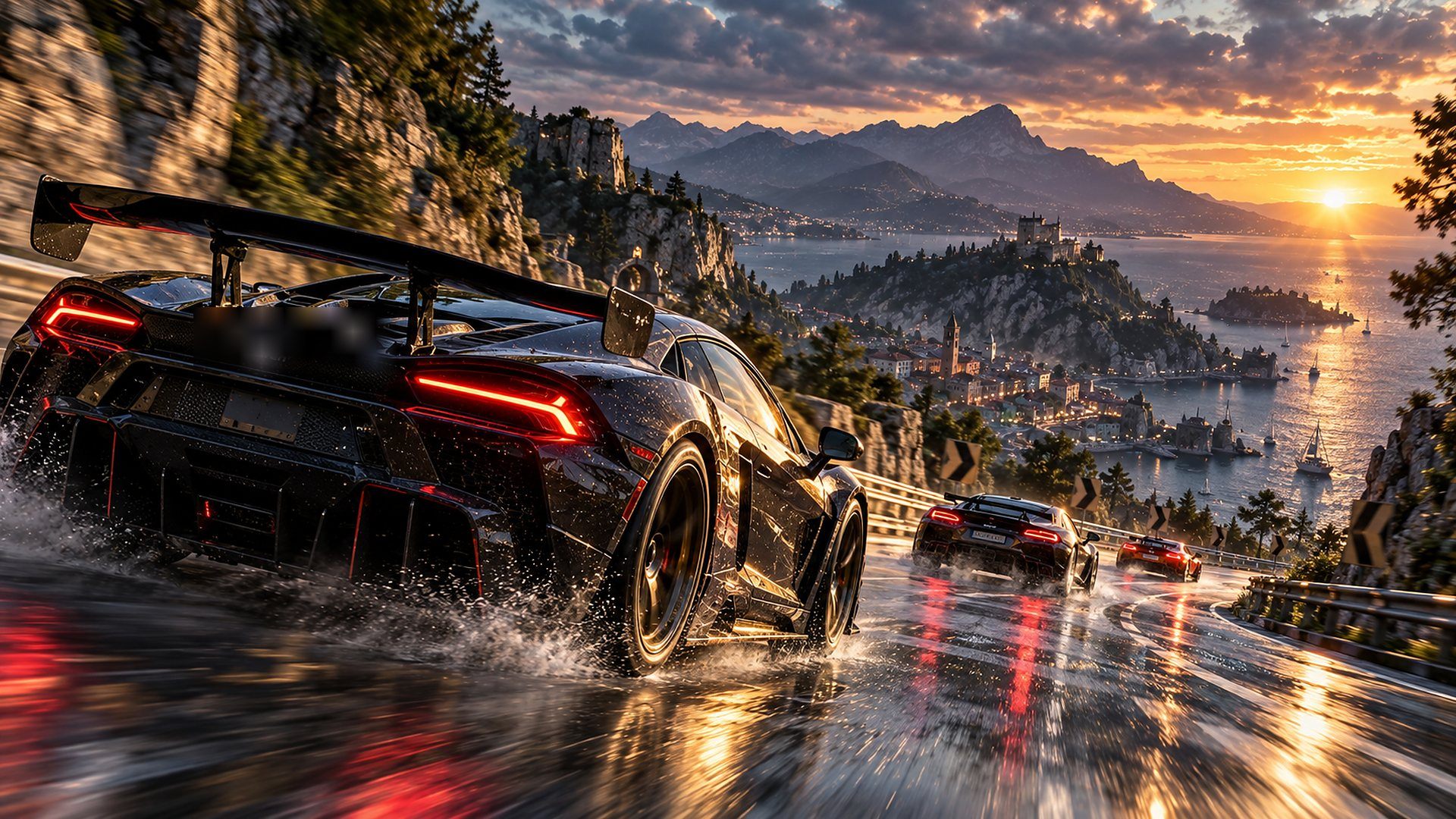
Anything where you're reading the road at speed and correcting in real time
At high speed, a camera whip-pan through a corner turns even one late frame into something your brain reads as the car losing grip. That "jerky", unpredictable feeling that catches you out mid-corner is very often a frame-time spike, not you actually driving badly. Anti-Jitter (Timer Resolution) keeps Windows' scheduler ticking on a tight, consistent interval so physics and input polling land on time instead of bunching up. Per-game CPU core mapping keeps background housekeeping off the core your physics/render thread is pinned to, so a stray driver interrupt doesn't steal milliseconds right as you turn in. And if something IS stealing time, DPC Latency Monitor names the exact driver responsible instead of leaving you guessing.
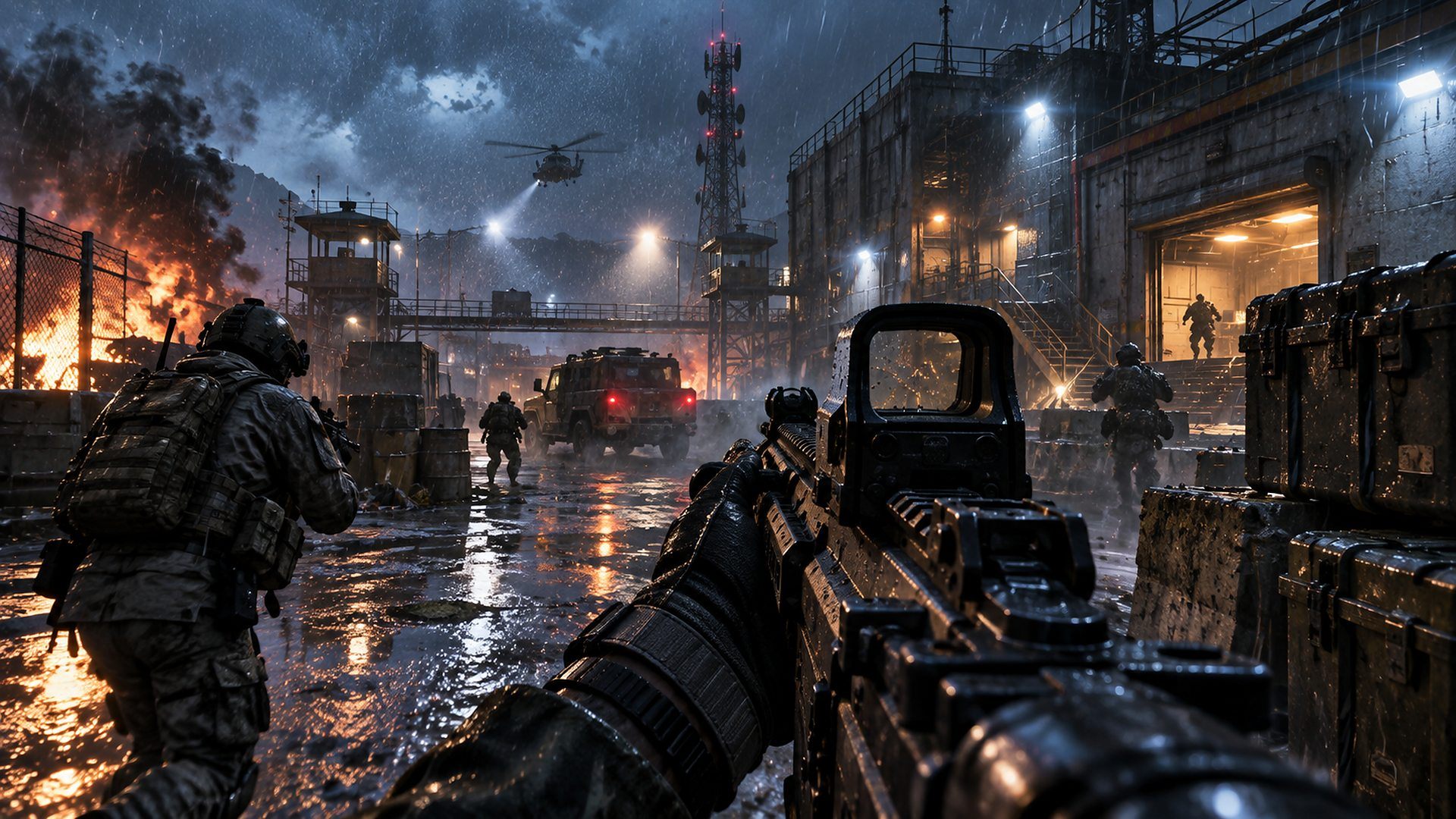
Competitive and casual shooters, milsim, arena and tactical alike
Your reaction time chain has more links than you'd think: mouse sensor → USB → OS input queue → game → render → display. Disabling USB Selective Suspend removes the real, measured 2–5ms wake-up delay that can land right when you needed to flick. Reduced input data queue size stops a burst of fast movement getting buffered. On the network side, MTU and bufferbloat tuning flatten the ping spikes behind a "shot didn't register" moment in a peeker's-advantage duel, real per-packet queue management, not a placebo "gaming mode" toggle. Overlay HUD lets you watch frame time and ping live, mid-match, instead of guessing afterward why a fight felt off.
Any large-lobby last-one-standing shooter or survival game
Huge maps mean huge amounts of terrain and texture data streaming in as you move and fight: memory management tweaks keep RAM and paging from stalling mid-loot, and storage tuning aimed at NVMe/SSD behaviour helps assets stream in without a half-second freeze right as an enemy rotates on you. A 100-player lobby also means far more traffic hitting your connection at once than almost any other genre; jitter and MTU tuning matter more here because a single lost or delayed packet mid-fight can mean a missed shot or a rubber-banded death. Per-game CPU affinity keeps that background scanning/streaming load from starving your render thread right when the circle closes.
Lane-pushers, base-builders, anything with a lot of units on screen at once
A single teamfight or a big army clash can spike CPU and GPU load in under a second: dozens of units, spell effects, and pathfinding calculations all landing at once. GoldCore's background process suspension (which kicks in the instant it detects a game running) means Windows Update, indexing, and other apps aren't competing for that exact same CPU headroom right when the fight breaks out. Conflict Detection matters more here than most genres too: RTS/MOBA players often stack a lot of tweaks chasing consistency, and two quietly fighting each other is exactly what causes a "why did I stutter for no reason" moment mid-fight.
Persistent worlds, raid content, anything you'll still be playing next year
Long sessions are the genre most exposed to things quietly degrading over time: a memory leak in a background app, thermal creep, a process slowly ramping up in the background. Spike Alerts catches exactly that kind of slow-building problem mid-raid instead of you only noticing once your DPS has visibly tanked. Jitter tuning matters in any 20–40 person raid boss fight where dozens of ability effects are syncing across the network at once. And because MMOs get played for years, not weeks, the one-click revert on every tweak matters more here too, nothing permanently altered, easy to dial back before a big content patch changes what the game actually needs from your PC.
1v1 and team fighters, anywhere inputs are read frame by frame
Frame-perfect execution is the entire genre: one dropped or delayed frame can be the difference between a combo connecting or a whiffed punish, a parry landing on time or not at all. Anti-Jitter (Timer Resolution) is arguably the single most valuable tweak in the whole catalog for this genre specifically: the difference between Windows ticking your input polling on a coarse, default scheduler interval versus a tight, consistent one. Reduced input queue size and removing USB Selective Suspend matter here too, any added latency between your fingers and the game reading that input is a frame you can lose a match over.
Flight and space sims, VR of any genre, long uninterrupted sessions at full load
This genre sustains the highest CPU and GPU load of anything on this page, often for hours at a time, exactly the conditions where thermal throttling can quietly rob you of frames 40 minutes in without ever throwing an error. Voltage and temperature alerts catch that throttling before you notice it as "the game just feels worse than it did an hour ago." Frame-time consistency matters more in VR specifically than almost any other genre on this list: inconsistent frame time is one of the biggest known contributors to VR motion sickness (alongside latency and field-of-view), not a low average FPS number on its own. Every stutter-focused tweak in the catalog (Anti-Jitter, GPU scheduling, DPC latency fixes) is disproportionately valuable here, because your inner ear is grading the result, not a benchmark overlay.
A high FPS number means nothing if your monitor can't show it, or if VSync is quietly adding latency to make it look clean. Here's how the two actually interact.
FPS is how many frames your PC renders per second. Refresh rate (Hz) is how many times your monitor redraws the screen per second. They're independent numbers that only help you when they're working together. Render more frames than your monitor can show, and the extra ones either get thrown away or cause visible tearing (part of one frame and part of the next shown at once). Render fewer than your monitor's refresh rate, and you get stutter, because the screen ends up redrawing the same old frame more than once while it waits for the next one.
Every extra queued frame costs roughly one full refresh interval, and that interval gets smaller the higher your Hz goes:
VSync holds a fully-rendered frame back until your monitor's next refresh, so the screen never shows a half-updated frame (tearing). The cost is in the numbers above: if your GPU finishes frames faster than your monitor refreshes, those finished frames queue up, and each one waiting in that queue adds a full refresh interval of input lag on top of your normal render time. That's the actual mechanism behind "VSync feels laggy", it's not a myth, it's simple queuing.
Variable refresh rate flips the relationship: instead of your GPU waiting for a fixed refresh schedule, your monitor's refresh syncs to whatever the GPU just finished. No queue forms, so you get VSync's clean, tear-free image without its latency tax. The one setup detail worth getting right: driver VSync on, in-game VSync off, with an in-game frame cap set a few FPS under your monitor's max refresh, keeps the frame rate inside the VRR window without ever spilling over into a queue.
And this is exactly why the "five stages" pipeline earlier on this page keeps coming back to frame time, not average FPS. A 240Hz monitor with wildly inconsistent frame timing can feel worse to play on than a rock-steady 60Hz display, because your eyes and your input register every individual frame's timing, not the number a benchmark tool prints at the end of a run. Chasing a bigger Hz number without also fixing what's feeding it inconsistent frame times is solving the wrong half of the problem.
The Overlay HUD and Tweak Verification Lab both measure real per-frame timing, not just an average, live via PresentMon, exactly the number that actually matters from the explanation above. The NVIDIA Settings Guide walks through every setting on this page in full technical detail (Vertical Sync, Max Frame Rate, Preferred Refresh Rate, and more), with the real queuing-latency math for your exact refresh rate and a tier-appropriate recommendation for each one, not a single "just turn VSync off" one-liner that ignores your actual hardware. GoldCore also checks your actual monitor on every scan: if it detects your display is capable of a higher refresh rate than Windows currently has it set to, it flags the exact mismatch and offers a safe one-click fix, the same confirm-and-auto-revert safeguard Windows' own display settings use, so a bad mode can never get stuck.
Same standard as the rest of the app: real screenshots of the actual tools, not mockups.


Whatever you play, it's the same catalog, applied to optimize exactly where your specific game actually needs it on your specific PC.
Download Free