Get early builds of Wayne's GoldCore before general release, and help decide what gets prioritized next. Everything happens on Discord, beta build announcements, bug reports, and getting your product key.
Product keys aren't emailed automatically. You get yours by DMing Wayne (Slicer) directly on Discord. Here's exactly how:
While you're in the server, you'll also find where beta builds get announced and where to report bugs or feedback, worth a look around once you're in.
Join the DiscordAlready have a key, or just want the file? Version … · Windows 10/11
Download Beta InstallerSigned with a real code-signing certificate, but it's a brand new one - your browser may still show a mild "not commonly downloaded" warning until it builds up download history. Click it, then "Keep"/"Keep anyway" if so.
GoldCore NetGuard, Process Manager, and Latency Monitor are also full standalone apps, no full GoldCore PRO required. Same beta rules as above: free during the beta, product key from Discord, key expires after 30 days. After the beta ends, each one is £14 one-time, lifetime (guaranteed working for at least 5 years) as its own independent purchase. A full GoldCore PRO key also unlocks all three, if you already have one.
A standalone gaming firewall/lockdown tool built on WinDivert. Blocks DDoS/reflection traffic aimed at your session and locks down which processes can reach the network while you play.
Download BetaA focused process/priority manager. Set per-process priority and CPU affinity, spot resource hogs, and keep the processes that matter running smoothly, without opening the full GoldCore app.
Download BetaReal DPC (Deferred Procedure Call) latency monitoring with a per-driver breakdown, so instead of "your PC feels laggy" you get the actual driver responsible, plus a plain-English end-of-session report.
Download BetaGetting your key works exactly the same way as above. DM Wayne (Slicer) on Discord and just say which app(s) you want a key for. Each app needs its own product key, separate from a GoldCore PRO key. Same signed installer, same SmartScreen warning, same "Keep anyway" click. See the guide below if you hit it.
Version … · Windows 10/11 · You'll need a product key from Discord to unlock it after installing.
Download Beta InstallerSigned with a real code-signing certificate, but it's a brand new one - your browser may still show a mild "not commonly downloaded" warning until it builds up download history. Click it, then "Keep"/"Keep anyway" if so.
That's normal for a brand new app, not a sign anything's wrong. It's the exact same warning any new, small developer's software shows until enough people have downloaded it. Here's exactly what you'll see and what to click, step by step:
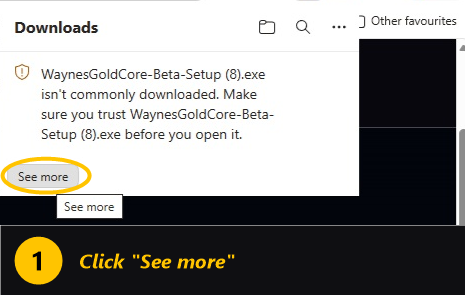
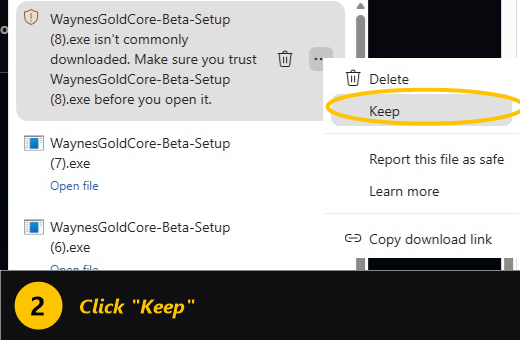
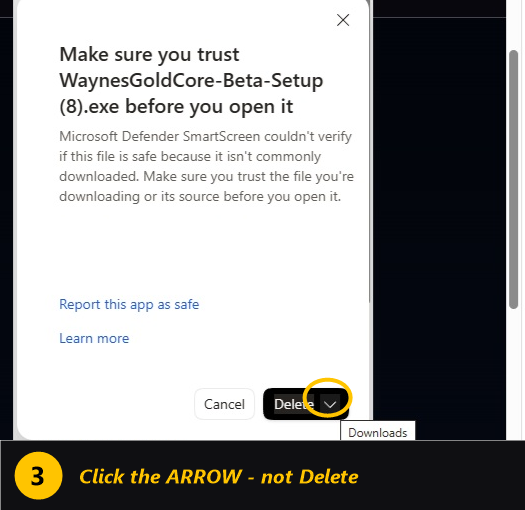
If you launch the installer and Windows itself shows a similar "protected your PC" screen, it works the same way, look for a small More info link, which reveals a Run anyway button.
